
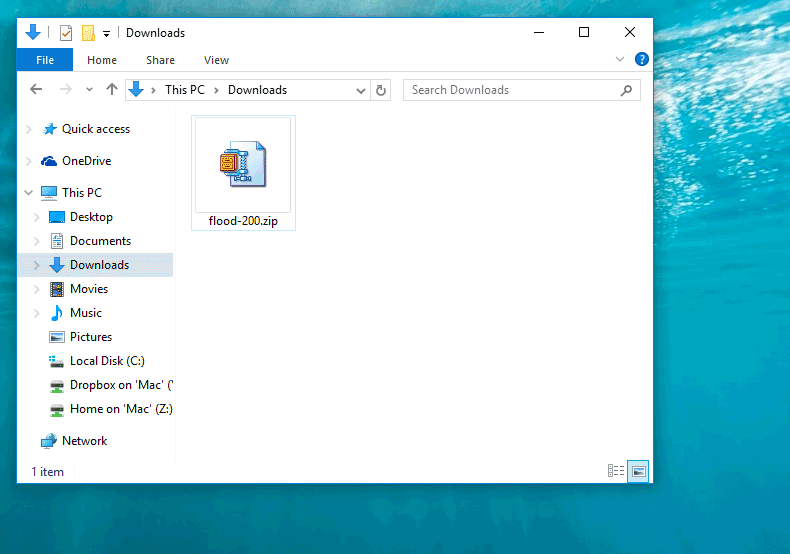
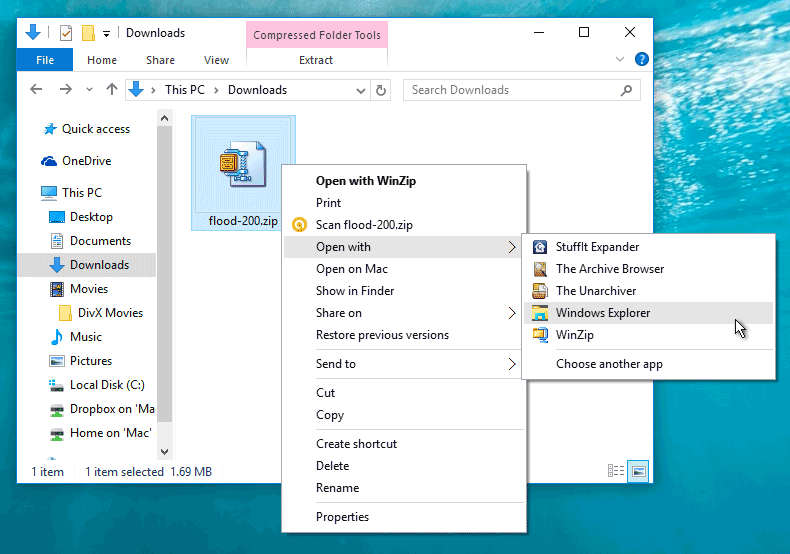
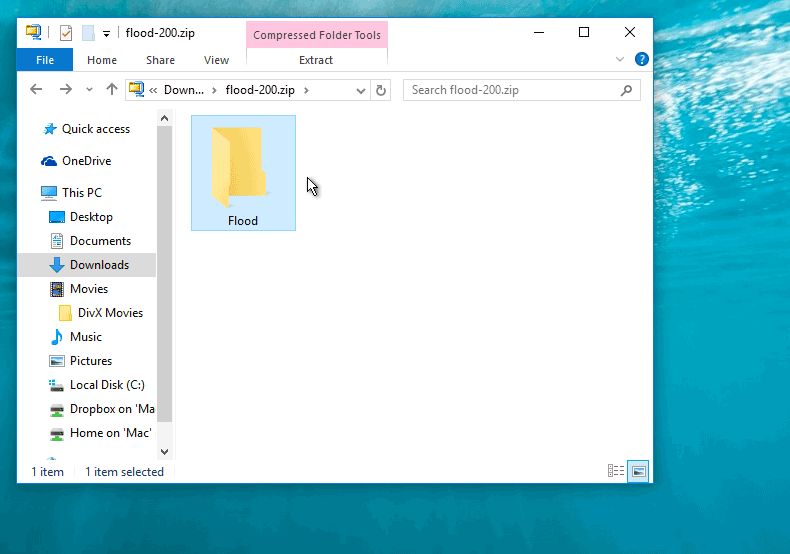
You have a folder on your hard drive called... C:\Program Files\Adobe\Adobe Photoshop CC 2017/Plug-ins . (The name may be a little different depending on which version of Photoshop you have.) Drag the plug-in into that folder. 

|
You have a folder on your hard drive called... C:\Program Files\Adobe\Adobe Photoshop CC 2017/Plug-ins . (The name may be a little different depending on which version of Photoshop you have.) Drag the plug-in into that folder.
|
